Streaming games from an LXC container: Steam + Sunshine + Moonlight
Updated 14 November 2026

- Why it is needed and how it works
- Preparing the host
- Container contents
- Sunshine in the container
- If the host has a graphics card
- Sound
- Automatic session start without a monitor
- Automatic container start after a host reboot
- Client on the set-top box
- Container portability and host requirements
- See also
Why it is needed and how it works
You can run Steam games on a home server running Calculate and receive the video and audio on a TV set-top box over the local network. The whole game stack — Steam, Sunshine and their dependencies — lives inside a single LXC container. This lets you set up streaming on a server Calculate Linux build without a graphical profile and without Xorg on the host: Calculate Scratch Server is enough, and the container brings up all the graphics itself. The host needs LXC with cl-lxc and the uinput kernel module, and for games without a native version also a graphics card; the container itself moves to another server by copying its directory.
It works as follows. Inside the container a game session is set up without a physical monitor, Sunshine captures the screen and encodes the frame with the x264 software video codec, and the Moonlight client on the set-top box displays the frame and sends gamepad input back. Games with a native Linux version get by with the host CPU: Steam graphics libraries run on software rasterization. Games that have no such version and run through Proton compatibility need the host graphics card — their DirectX layer works on top of Vulkan. A rendering node is enough: the card remains available to the host as well.

Preparing the host
Install app-containers/cl-lxc and LXC on the host; the installation order and the general mechanics of working with cl-lxc are described in the article about LXC containers, and are not repeated here.
Separately, enable the uinput kernel module on the host: Sunshine uses it to create the virtual gamepad that Steam sees. The Calculate kernel builds it as a loadable module (CONFIG_INPUT_UINPUT=m), so add it to autostart — in Calculate this is handled by the modules service in the boot runlevel and the /etc/modules-load.d directory:
/etc/modules-load.d/uinput.conf
uinput
The module alone is not enough. By default the container is not given access to input devices, and the input subsystem inside it does not run its own device manager service, so add access to the device nodes and the pass-through of the events directory to the container config /var/calculate/lxc/steam/config on the host:
/var/calculate/lxc/steam/config
lxc.cgroup2.devices.allow = c 10:223 rwm
lxc.cgroup2.devices.allow = c 13:* rwm
lxc.mount.entry = /dev/input dev/input none bind,optional,create=dir
The mknod /dev/uinput c 10 223 line in the session startup script is only needed in case the module was loaded after the container had already started. Check that the groups match: the /dev/input/event* nodes on the host belong to the input group, and its number inside the container may differ from the host one — compare the output of getent group input on both sides and, if the numbers differ, create a group in the container with the host number and add the session user to it.
After these changes, restart the container and check from the inside that the device nodes are in place: ls /dev/input shows at least one event<N>, and cat /sys/class/input/event<N>/device/name names the device created by Sunshine.
Container contents
Create the container in the usual way, giving it the name steam:
cl-lxc -c steam
Inside the container, describe the gaming stack in a user set — a single file /etc/portage/sets/custom, one package per line:
/etc/portage/sets/custom
net-misc/sunshine
games-util/steam-launcher
x11-base/xorg-server
x11-drivers/xf86-input-libinput
x11-wm/openbox
x11-apps/xrandr
x11-terms/xterm
x11-apps/xdpyinfo
media-video/pipewire
media-video/wireplumber
media-libs/netpbm
net-dns/avahi
sys-apps/dbus
In the same place, set the Sunshine flags: for streaming without a graphics card you need X — screen capture of the X11 session — and x264 — the software video codec:
/etc/portage/package.use/custom
net-misc/sunshine X x264
Install the packages of the set with cl-update: it installs everything listed in the set, and the same command restores the stack after a profile update (cl-lxc -p), which moves the custom files:
cl-update
Here x11-base/xorg-server works as Xvfb (a virtual X server without a monitor), media-video/pipewire with wireplumber provide the sound subsystem, net-dns/avahi provides host discovery on the network, and sys-apps/dbus provides the bus without which the Steam runtime does not start.
Sunshine in the container
The Sunshine web interface is available at https://<host-IP>:47990; set the password once at first login. In the Sunshine config ~/.config/sunshine/sunshine.conf of the session user, specify:
~/.config/sunshine/sunshine.conf
encoder = software
origin_web_ui_allowed = lan
upnp = disabled
gamepad = auto
The value encoder = software pins the software codec, origin_web_ui_allowed = lan opens the web interface to clients on the local network, and upnp = disabled disables automatic port configuration on the router: the container does not need it. During streaming, Sunshine uses ports 47984 and 47989 over TCP, the range 47998–48000 over UDP, and 47990 over TCP for the web interface.
The gamepad parameter sets the type of gamepad that Sunshine creates on the server: auto selects it based on the client's report; x360, xone, ds4, ds5, switch and generic are also available. The related parameters motion_as_ds4 and touchpad_as_ds4 work only with gamepad = auto, and the gamepad_driver parameter applies to Windows and has no effect on Linux.
If the host has a graphics card
Frame encoding can be offloaded to the host's graphics card — the CPU is then freed for the game. Replacing encoder alone in the config is not enough for this: the codec must be built into the Sunshine package, the card driver must work on the host, and the container must see its devices. Below are the full paths for NVENC (NVIDIA) and VAAPI (AMD and Intel); each step ends with a check showing that the result has been achieved.
NVIDIA cards
NVENC support is always built into Sunshine when the package is built; the package has no separate USE flag for it.
Install the driver on the host, as root:
emerge -a x11-drivers/nvidia-drivers
Load the nvidia kernel module with the modprobe nvidia command (the module itself is built by the driver ebuild) and make sure that lsmod shows it.
Install the same driver inside the container, as root. The host and container versions must match, otherwise the user-space libraries will not agree with the kernel module:
emerge -a x11-drivers/nvidia-drivers
Pass the graphics card devices from the host into the container in the /var/calculate/lxc/steam/config file on the host:
/var/calculate/lxc/steam/config
lxc.mount.entry = /dev/nvidia0 dev/nvidia0 none bind,optional,create=file
lxc.mount.entry = /dev/nvidiactl dev/nvidiactl none bind,optional,create=file
lxc.mount.entry = /dev/nvidia-uvm dev/nvidia-uvm none bind,optional,create=file
lxc.mount.entry = /dev/nvidia-uvm-tools dev/nvidia-uvm-tools none bind,optional,create=file
and add the session user to the video group, which owns these nodes on the host. After the changes, restart the container and check the result from inside: nvidia-smi should show the card and the driver version. If the card is not visible and there are no devices in the container, check the pass-through lines and that the nvidia module is loaded on the host.
AMD and Intel cards
The VAAPI codec is built into Sunshine only with the flag of the same name, so append vaapi to the sunshine line in the container's /etc/portage/package.use/custom. With the flags from the Container contents section, the line looks as follows:
/etc/portage/package.use/custom
net-misc/sunshine X x264 vaapi
Reinstall the package so that the flag takes effect:
emerge -a sunshine
The container must have Mesa with the driver for your GPU vendor: the VIDEO_CARDS variable is radeonsi for AMD and intel for Intel integrated graphics; set it in the container's /etc/portage/make.conf and update the system with cl-update. On the host, the driver for these cards is part of the system: the amdgpu, i915, or xe kernel modules are loaded automatically, so no separate installation is required.
Pass the rendering node into the container, in /var/calculate/lxc/steam/config on the host:
/var/calculate/lxc/steam/config
lxc.mount.entry = /dev/dri dev/dri none bind,optional,create=dir
and add the session user to the video and render groups, which own the /dev/dri/renderD128 node.
Check codec availability inside the container with the vainfo utility (the media-libs/libva-utils package): the output should list the H.264 and HEVC profiles with encoding entry points, VAEntrypointEncSlice and related ones. If there is no output or the profiles are missing, the devices are not visible in the container or the Mesa version does not match.
For games that need a graphics card, check Vulkan the same way. Install dev-util/vulkan-tools in the container the same way as the rest of the stack, from the user set, and display the list of devices:
vulkaninfo --summary
The output should show the device name (deviceName) and VK_KHR_xlib_surface or VK_KHR_xcb_surface surface support; the absence of a device means that Mesa was built without the required VIDEO_CARDS set or that the nodes are not passed through. If the container session starts with the LIBGL_ALWAYS_SOFTWARE=1 and GALLIUM_DRIVER=llvmpipe variables, remove them after passing the card through — otherwise programs will keep rasterizing on the CPU despite the available device.
Switching the codec
When the devices are visible from the container (vainfo or nvidia-smi showed a result), replace the encoder = software line in sunshine.conf with encoder = vaapi for AMD and Intel or with encoder = nvenc for NVIDIA — the other config lines do not need to change — and restart Sunshine in the container. A sign of hardware encoding is the CPU load during streaming: with a hardware codec it is noticeably lower than in software mode.
Sound
You do not need to configure the audio path manually: Sunshine itself creates a virtual sink in the container's sound subsystem and makes it the system default, so do not set parameters like audio_sink in the config. PipeWire and WirePlumber run inside the container; start the session D-Bus in the session startup script using dbus-launch. For SDL games, pass audio through the PulseAudio-compatible interface via the SDL_AUDIODRIVER=pulse environment variable.
Automatic session start without a monitor
The container has no physical display, so prepare the session to start automatically when the container boots — with a standard OpenRC service. In the reference configuration this is the /etc/init.d/steam-desktop script, added to the default runlevel. It creates the /dev/uinput device (mknod c 10 223) and the user run data directory /run/user/<uid>, and runs the session script as an ordinary user; the script sequentially launches PipeWire, WirePlumber, the PulseAudio-compatible layer, Xvfb, the window manager, Sunshine and Steam.
Xvfb plays the role of the X server: start it on a display number that is free on the host (in the reference configuration, :7). Since there is no 3D accelerator, enable OpenGL in software mode by setting the LIBGL_ALWAYS_SOFTWARE=1 and GALLIUM_DRIVER=llvmpipe environment variables for the session — with this set, Steam and games run on CPU rasterization.
Automatic container start after a host reboot
cl-lxc does not configure the container to start at boot, and the lxc service on the host is by default in no runlevel — check this with rc-update show -v. Without this setting, after a host reboot the container will not come up on its own, and the set-top box will not be able to connect: there will be nothing to stream.
Each container gets its own service — its name must match the container name, otherwise the service will report a name mismatch at start. For the steam container this is as follows:
rc-update add lxc.steam boot
The service finds the container configuration on its own in the directory returned by lxc-config lxc.lxcpath (in the cl-lxc build this is /var/calculate/lxc), so no separate path specification is needed. After adding it, check the result:
Client on the set-top box
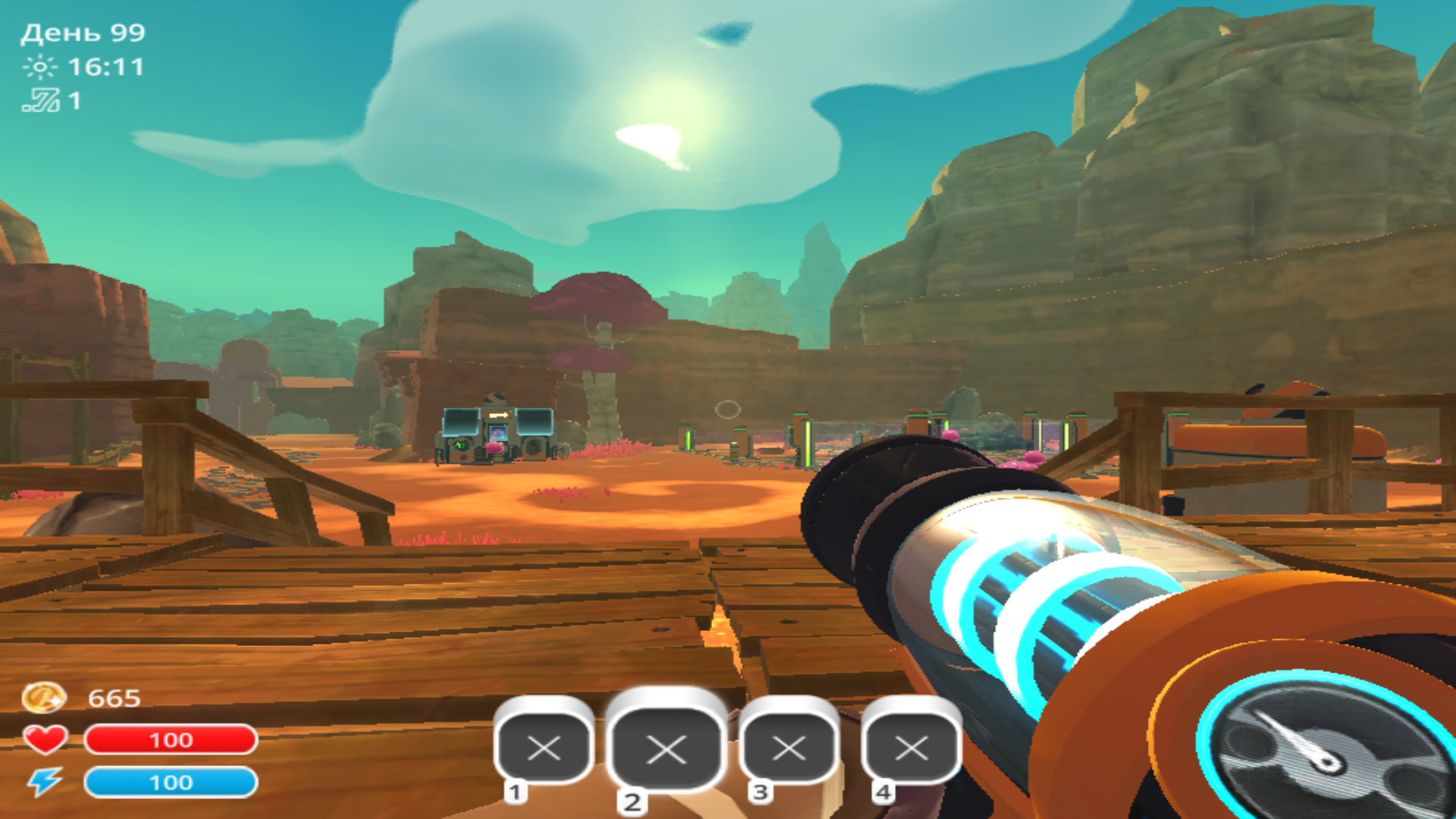
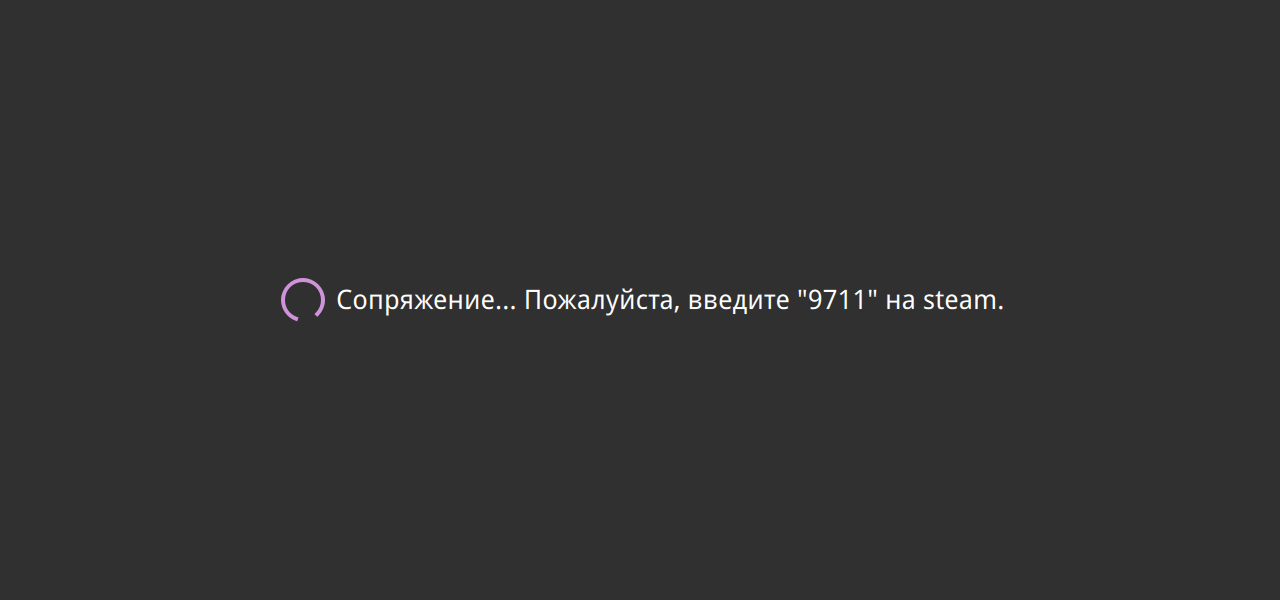
On the set-top box side, use the Moonlight client for Android TV; In it, specify the host by IP address. On first connection, Moonlight shows a four-digit PIN — enter it in the Sunshine web interface, and the client will appear in the list of allowed ones. After that, the set-top box has access to Steam applications: Desktop, Low Res Desktop and Steam Big Picture.
Connect the gamepad to the set-top box itself over Bluetooth, and do this before starting the stream: Sunshine creates input devices only for the duration of an active session, so it cannot show the games a controller that is disconnected on the set-top box. Check controller forwarding in the console log sunshine.log in the session state directory: a line such as Gamepad will be … means that the gamepad has been created. The startup order matters too: first connect from the set-top box, then launch the game — otherwise the game will list the available devices at its own start and will not see the gamepad.
Container portability and host requirements
The whole stack lives inside the container, so moving to another server comes down to copying the /var/calculate/lxc/steam directory together with the profile repository, if you use your own. For this to work, keep the whole functional stack described in the /etc/portage/sets/custom set. A new host needs only LXC with cl-lxc and the uinput module: the Calculate kernel is common to all editions, a desktop build is not required, and the CLS server edition works unchanged.
The main load during streaming is software x264 encoding. For comfortable 1080p at 60 frames per second, the host needs a multi-core CPU with AVX2; a practical guideline is at least six cores. The container runs in the host network namespace: the Sunshine ports listen directly on the host IP address, no NAT is required, but the host firewall rules must allow the ports listed above.
See also
- LXC containers in Calculate — installing cl-lxc, container profiles and Portage parameters inside the container.